
Create a bootable Backtrack 3 USB flash drive
Updated 11-06-2009
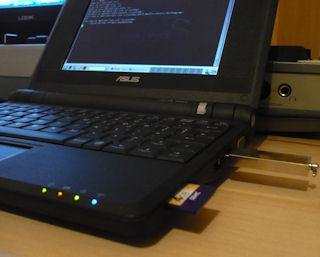
It's very useful to have a bootable USB flash drive for when your PC won't start or you need access to a custom system on the go.
In this guide we'll create a bootable USB version of Backtrack 3 which is quite a simple process. Once done it should boot on almost any PC capable of starting from a USB drive.
All you will need for this guide is a copy of Backtrack 3 USB and a spare USB drive (about 2 gig or larger).
Restoring the backup
1. Download Backtrack if you haven't already, the CD or USB version should work ok.
2. Use Daemon tools Lite or virtual CD software to open the file if you have downloaded the .iso version.
3. Copy both folders from the CD image, BOOT and BT3 (or BT4 if you are using Backtrack 4) to the root of your USB drive.
4. Now we need to make the USB drive bootable (be careful with this step, make sure you have the correct drive letter!)
If you are using Windows:
a. Open a command prompt and type: e: (replace e with the drive letter of your USB drive)
b. Next type: cd boot
c. Finally type: bootinst.bat
If you are using Linux:
a. Open a terminal window and type cd /mnt/sda1/boot/ (replace sda1 with your USB drive)
b. Finally type: ./bootinst.sh
User Manuals
Software Guide 
Hardware Guide
 Install Backtrack 3 to Internal Drive
(4gig+ version only)
Video / Text Version
 eee PC Troubleshooting
A list of various problems and solutions on the eeePC.
more
 Backup your eeePC
This guide shows you how to make an image of the SSD including all partitions.
Read the guide
 Make a bootable USB flash drive
In this guide we will create a USB stick that boots into Linux Backtrack.
Read the guide